What AquaServe Pro does, and how to use it.
One app for the whole RO business. Each part below works on a phone and on a computer.
Customers and RO units
Every job starts with knowing who the customer is and what is installed at their place.
What it does
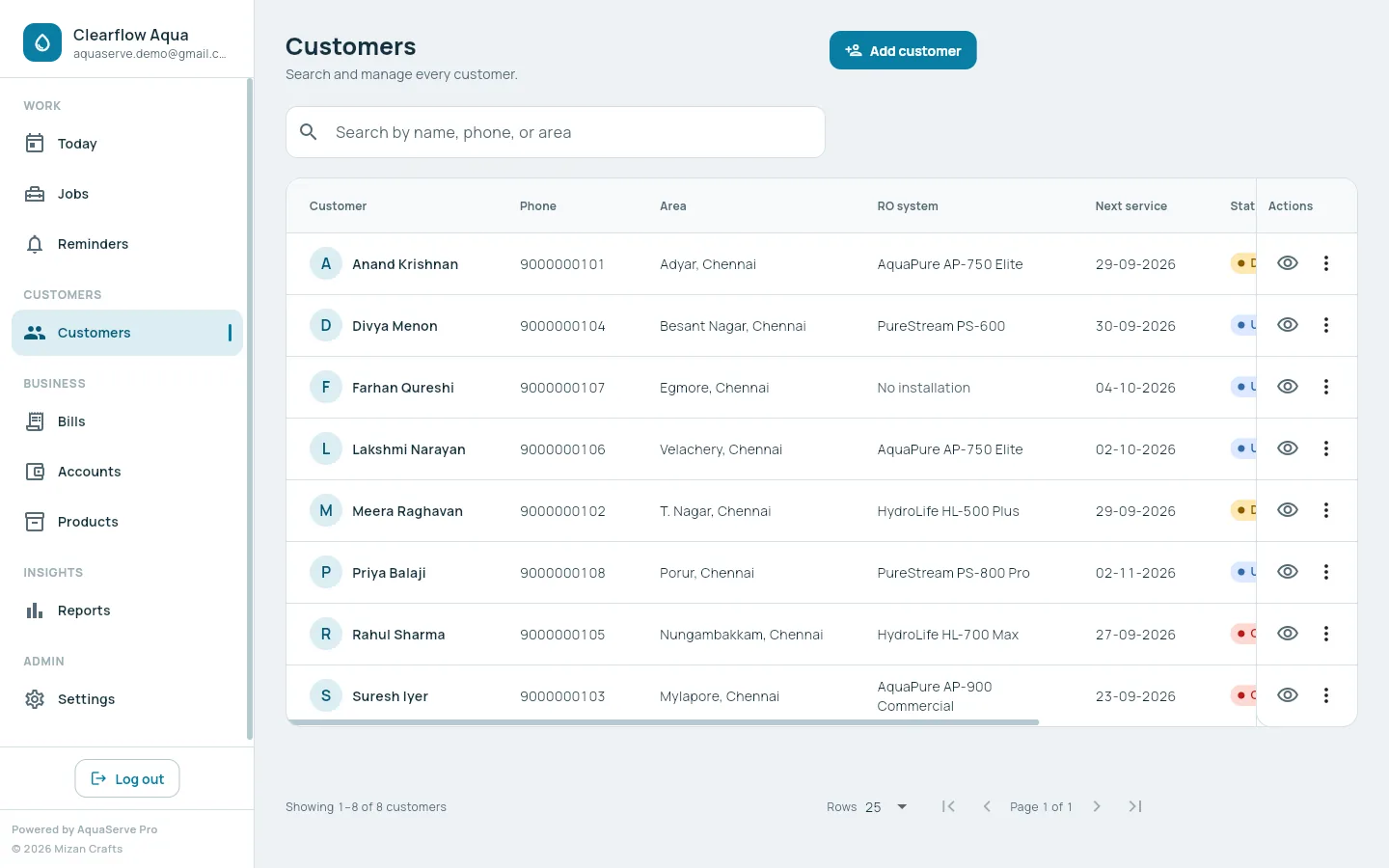
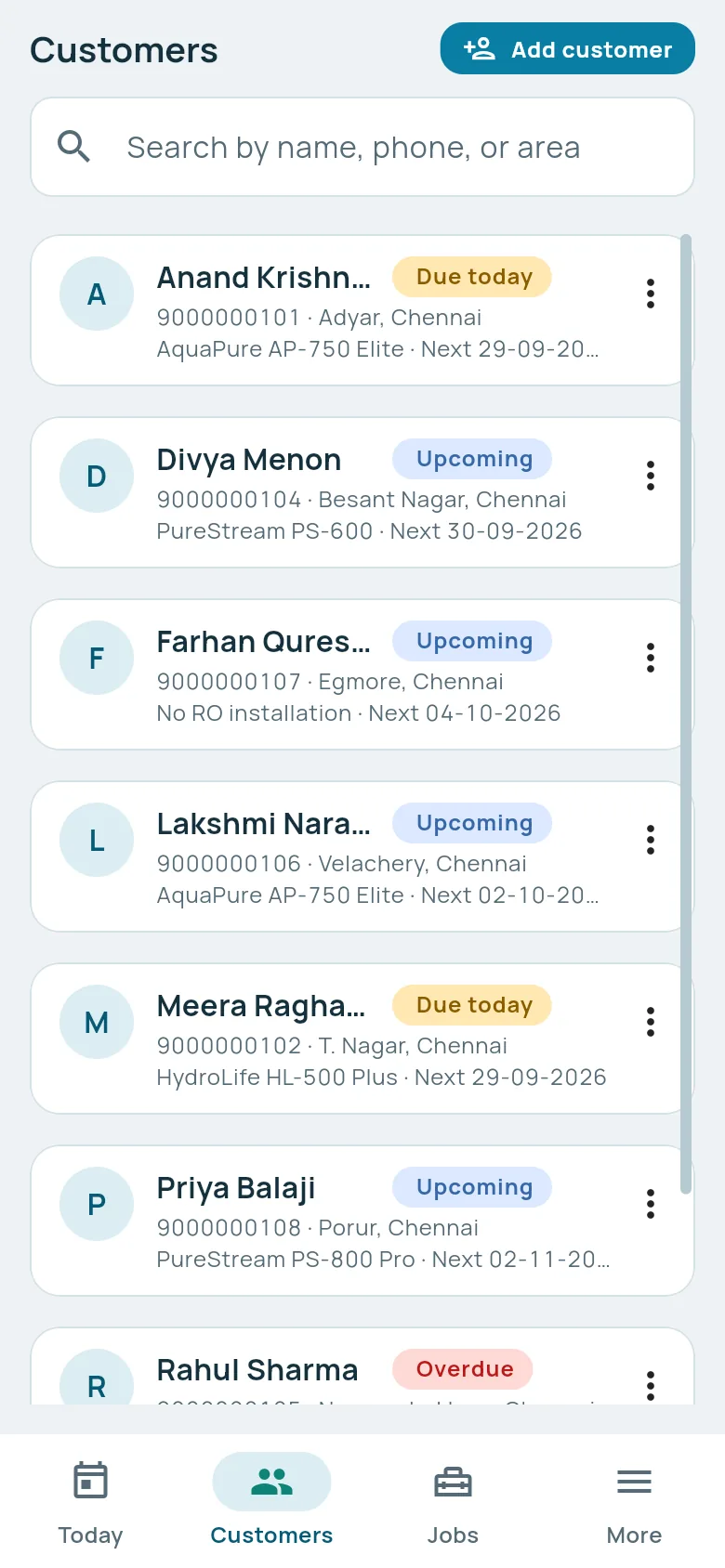
- Search customers by name, phone or area
- Record each RO unit: brand, model, serial number, capacity, warranty and TDS before and after
- See a customer's full history of installations, services, payments and bills on one page
- Call or WhatsApp the customer in one tap
- Add units you did not install, and service them the same way
How to use it
- 1Open Customers and tap Add customer.
- 2Tick Add an RO installation to record the unit and its payment in the same step.
- 3Open the customer any time to add another unit or see their history.
Jobs and service reminders
Filters and membranes are changed on time only if someone remembers. Now the app remembers.
What it does
- Record regular services, filter and membrane changes, complaint visits, repairs and inspections
- Add parts used, with prices, discount and the payment received
- Set the next service date on every job
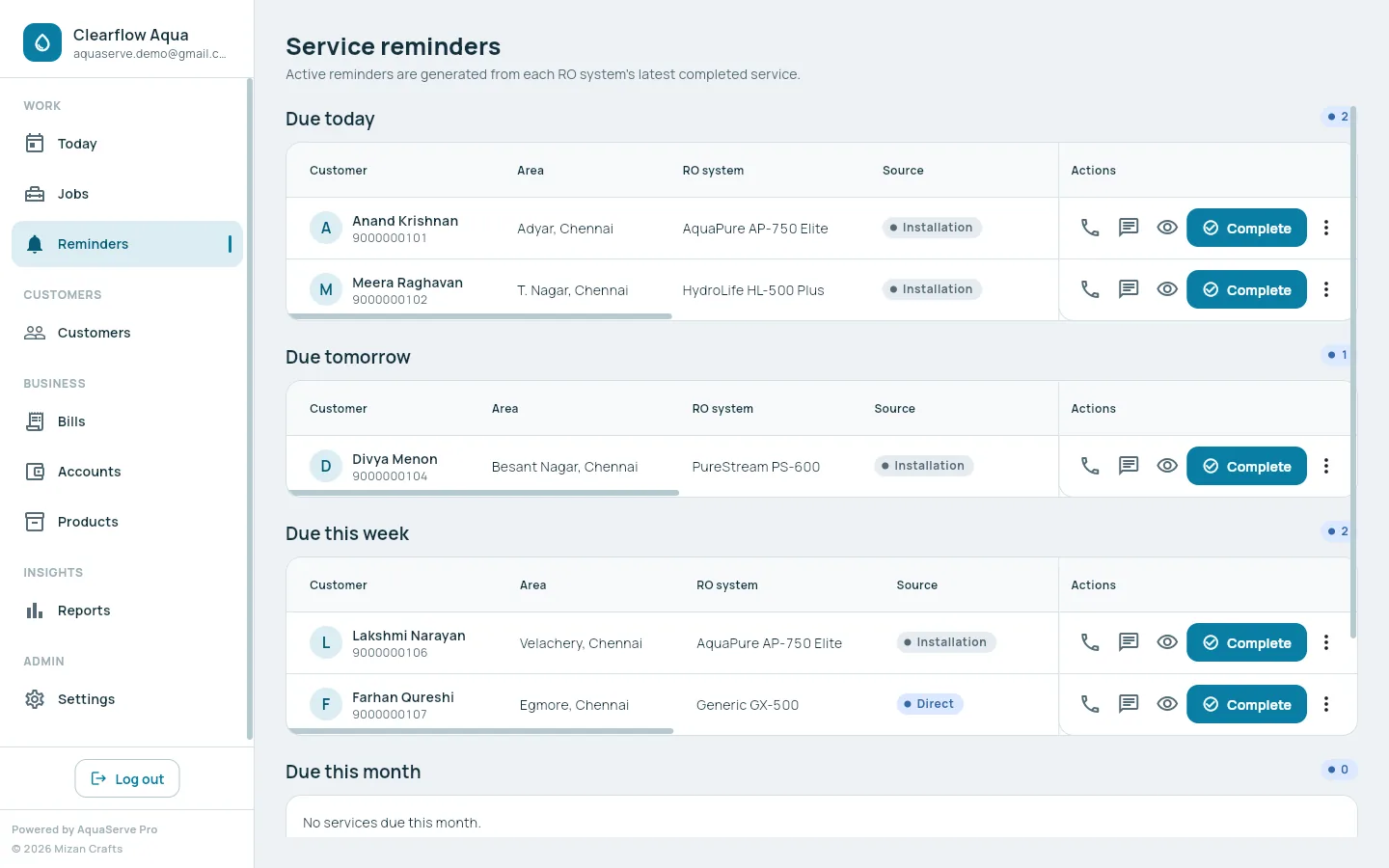
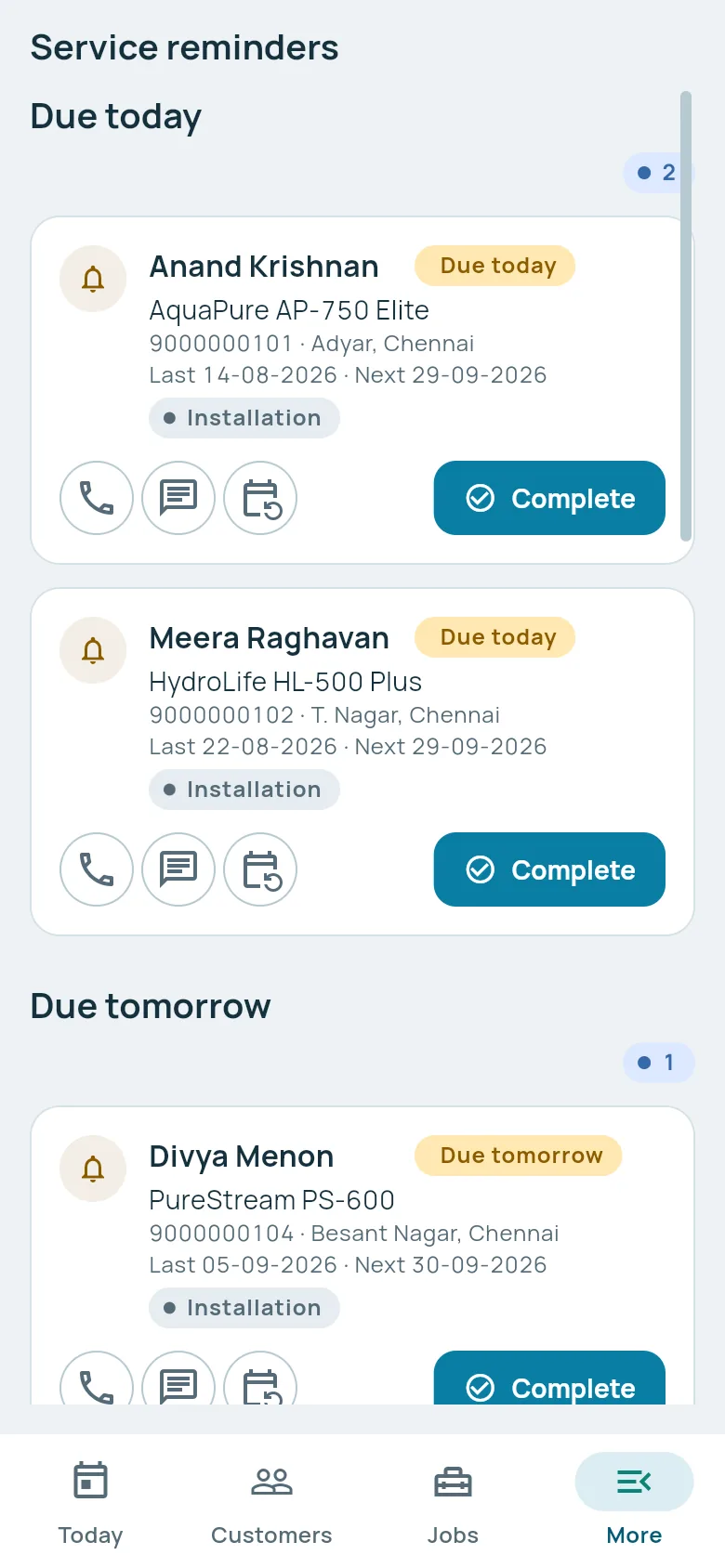
- Reminders sorted into due today, tomorrow, this week and this month
- Reschedule a reminder, or complete the service straight from it
How to use it
- 1Open Today each morning to see what is overdue and due.
- 2Tap Complete service on a reminder, fill in the work done and the payment.
- 3Pick the next service date, and the reminder for the next visit is ready.
Bills
A clear, numbered bill gets paid faster than a handwritten note.
What it does
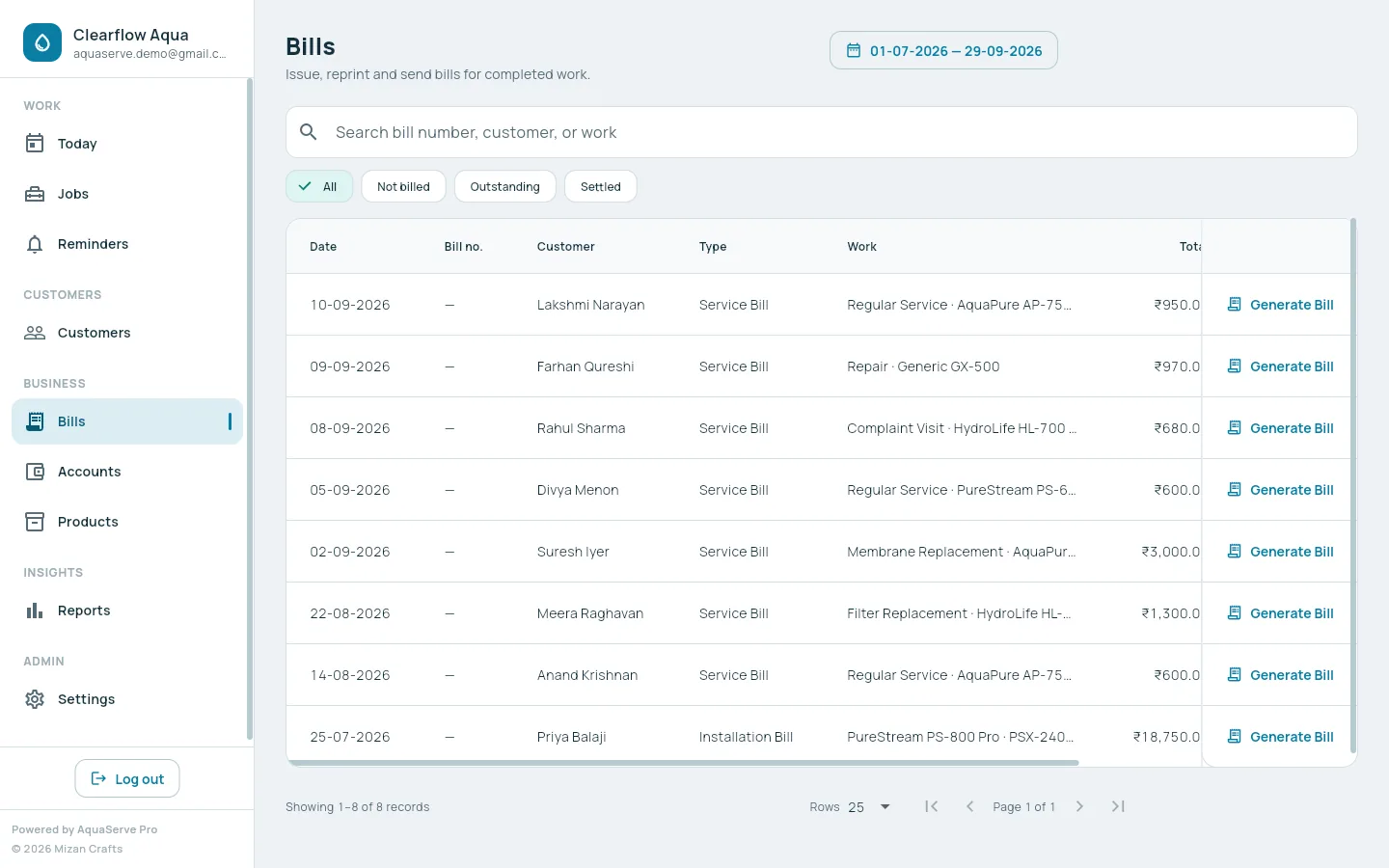
- A PDF bill for any service, installation or product sale
- Automatic bill numbers, with your own prefix
- Your name, logo, address and GST number on every bill
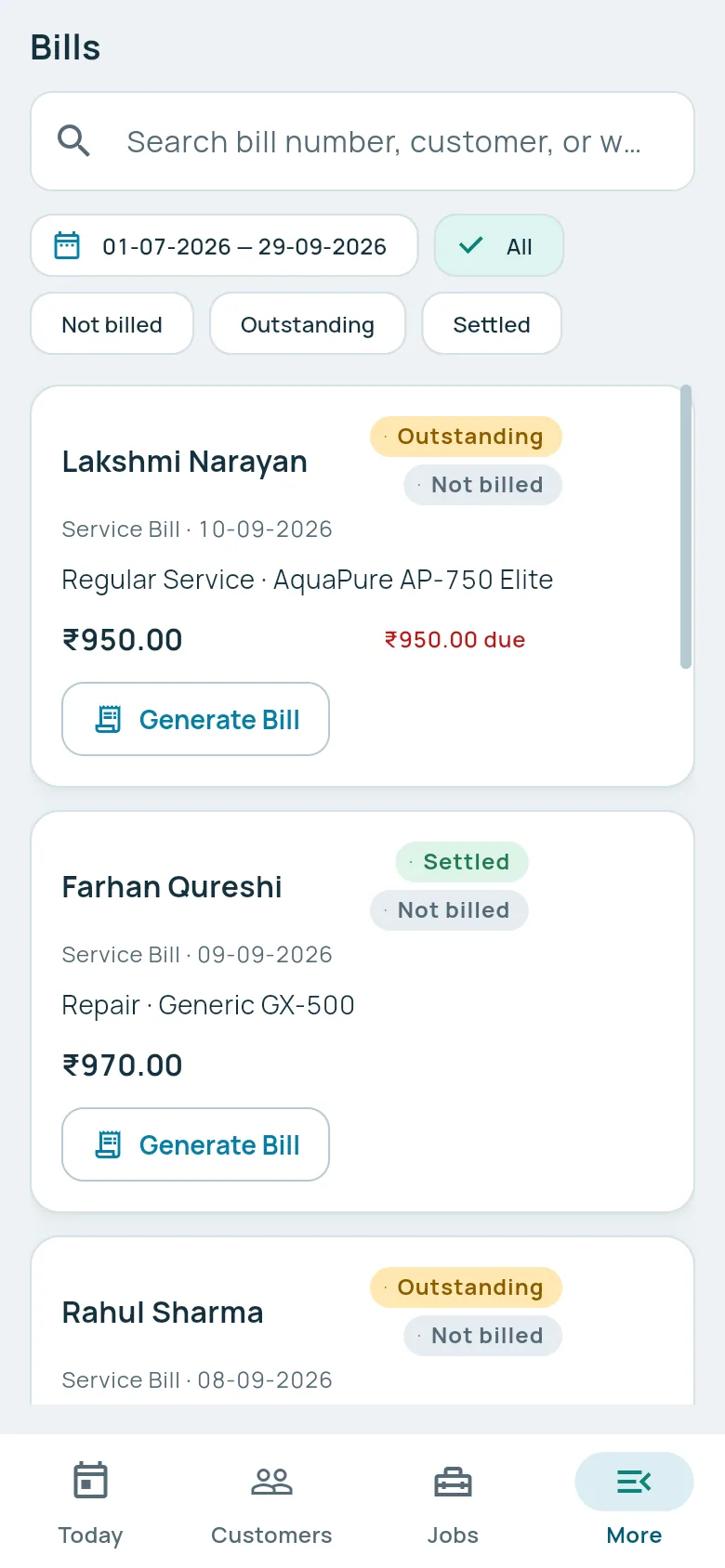
- Paid, part-paid or outstanding shown from the payments, so a bill never says Paid when money is owed
- Open a WhatsApp chat with the customer with the bill ready to send
- Filter bills by not billed, outstanding and settled
How to use it
- 1When you save a job, choose Save & Generate Bill.
- 2Check the preview, then download it or send it on WhatsApp.
- 3Edited the job later? Regenerate the bill. It keeps the same number, and earlier versions are kept.
Products and stock
Parts and purifiers are money on a shelf. Know what you have before a customer asks.
What it does
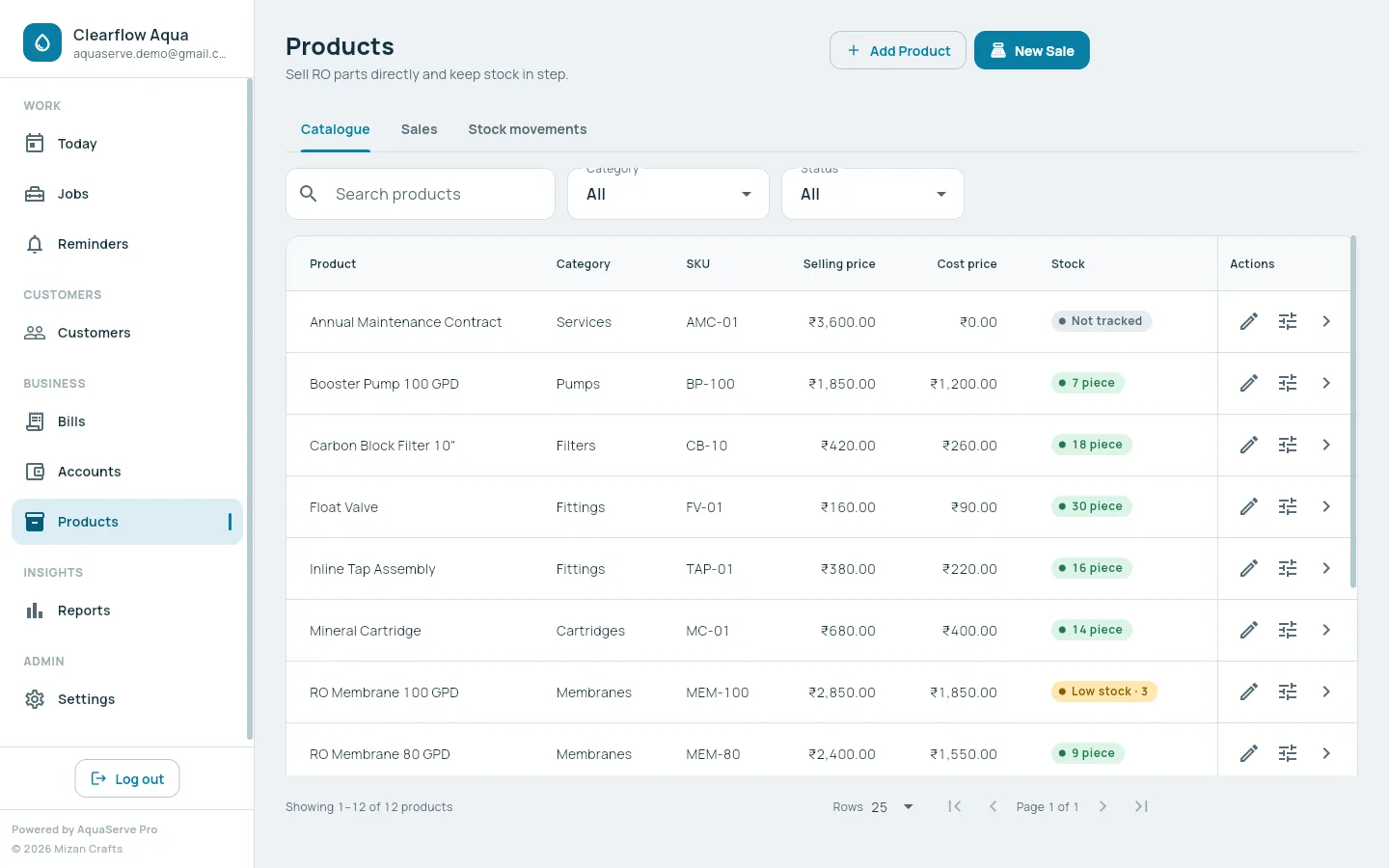
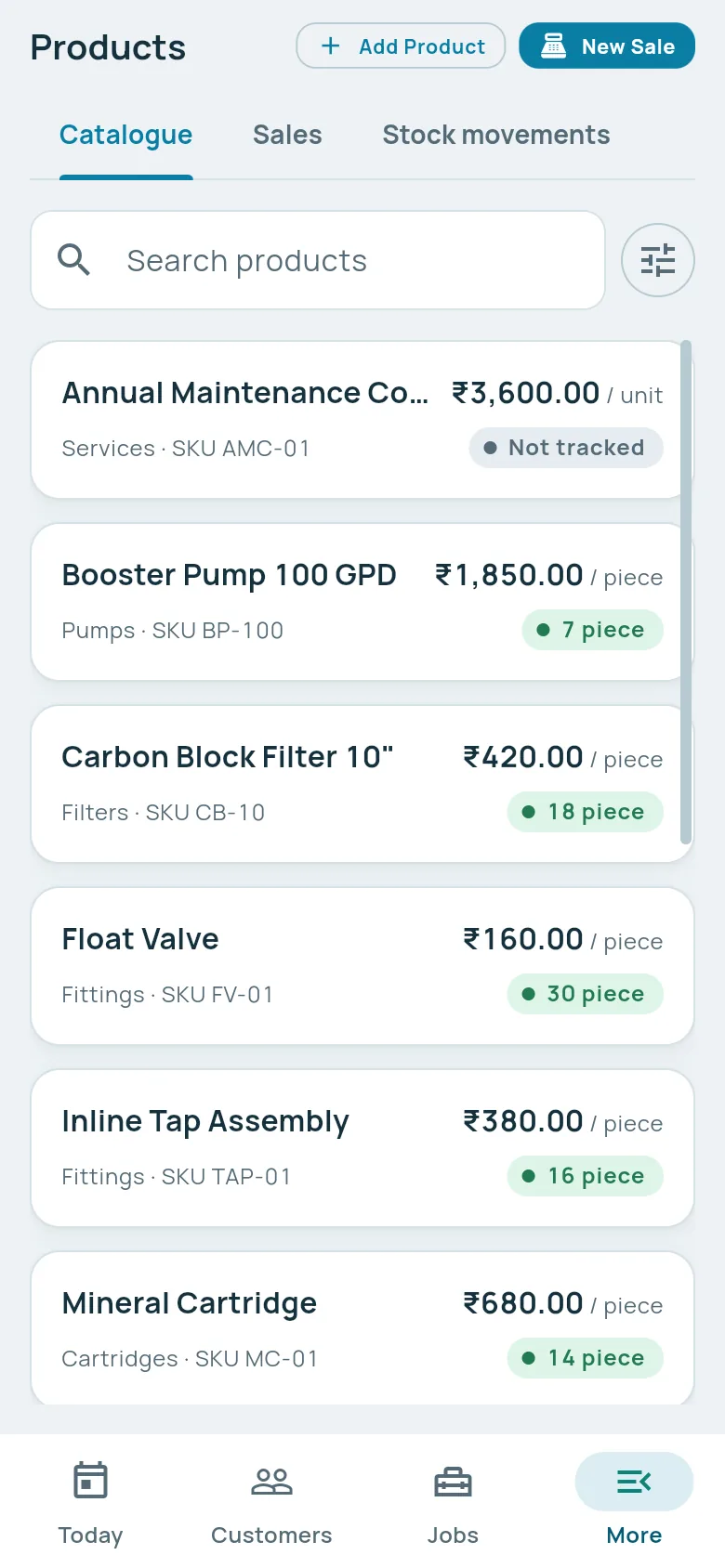
- A catalogue with category, SKU, selling price, cost price and unit
- Stock tracking for each product, with a minimum level and low-stock alerts
- Counter sales with several items, discount and payment
- Parts used in a service come out of stock automatically
- Every purchase, sale, return and adjustment kept as a stock movement
How to use it
- 1Open Products and add the items you sell, with their current stock.
- 2Use New Sale for counter sales, or pick parts from stock inside a service.
- 3Record purchases when new stock arrives. Low stock shows on Today.
Accounts
Billed is not the same as received. Accounts shows the money you actually have.
What it does
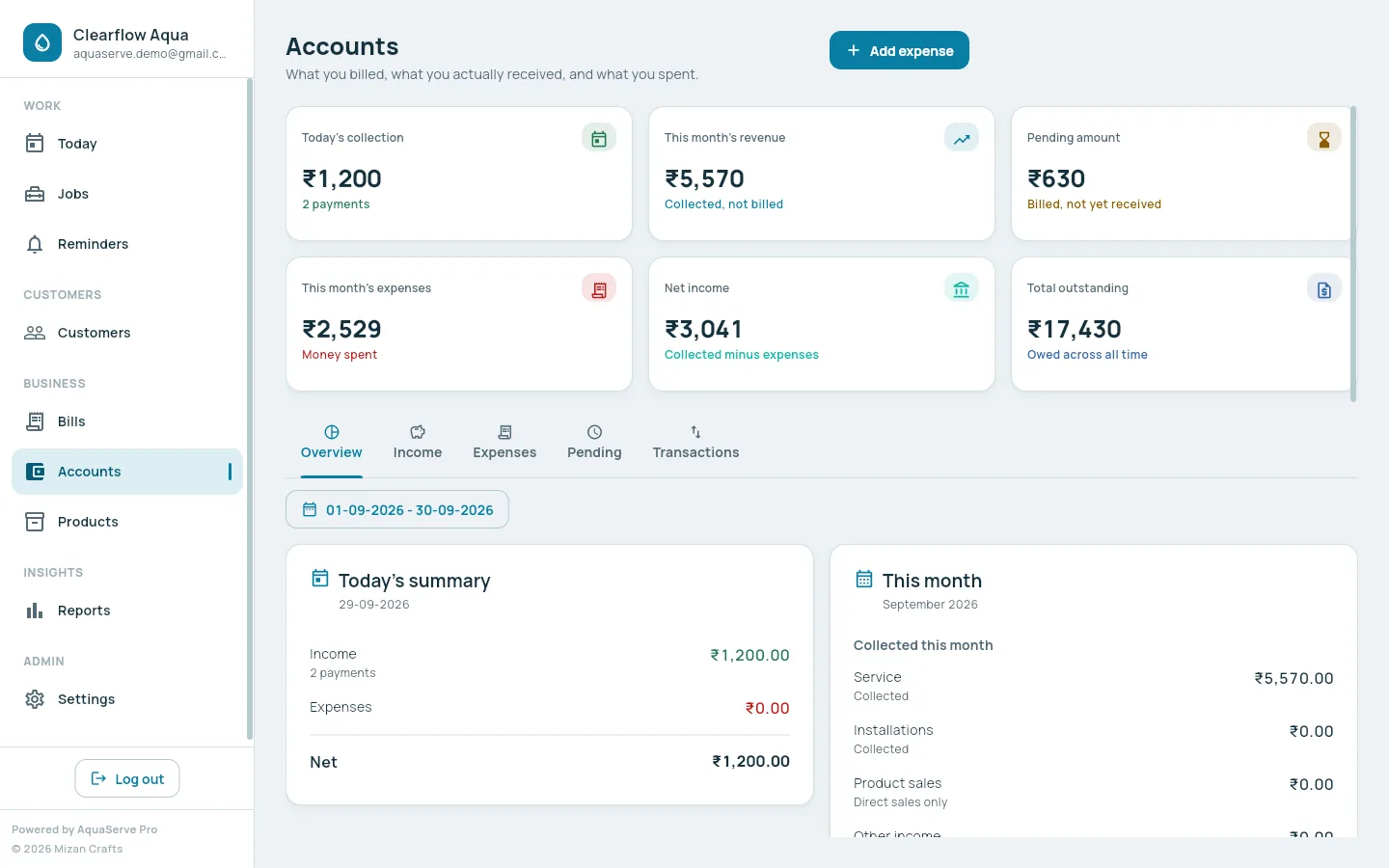
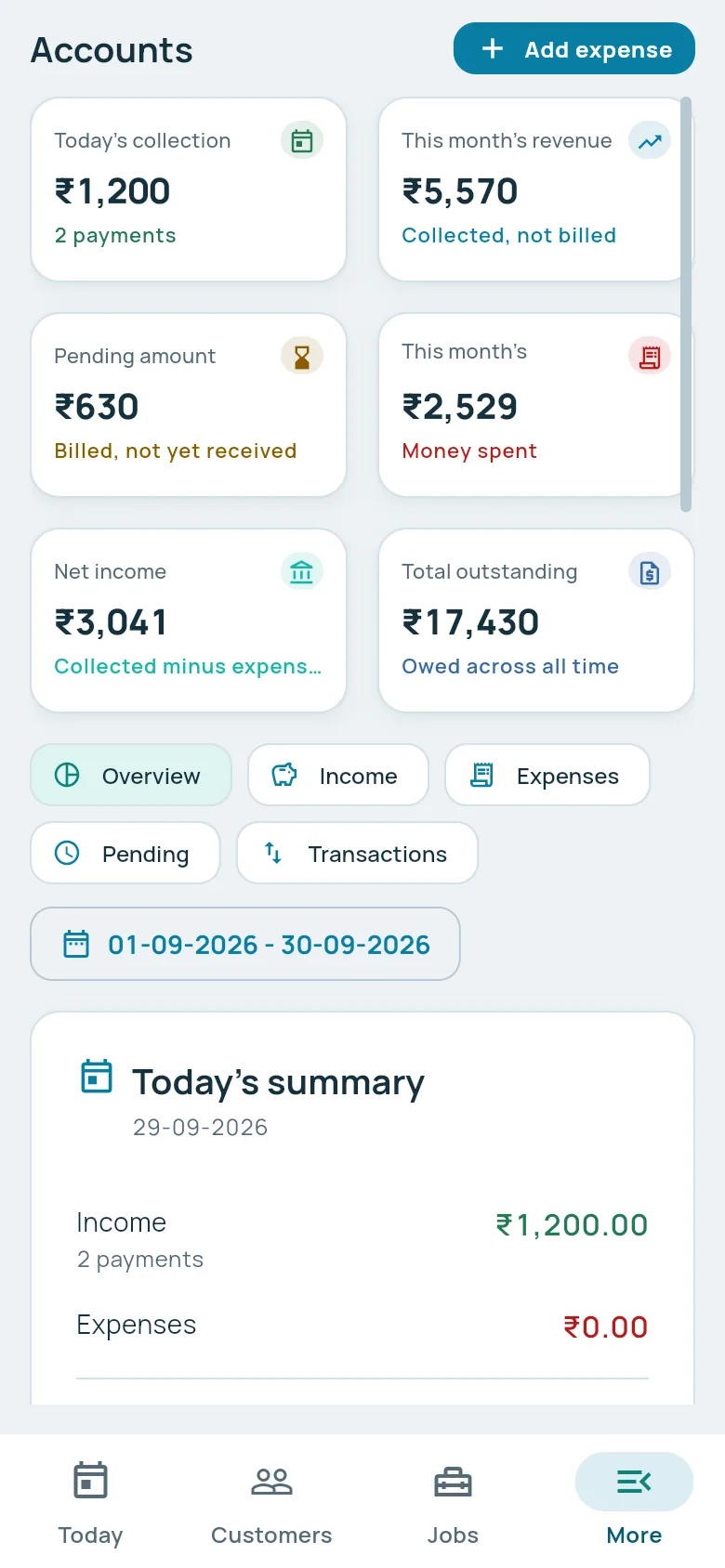
- Today's collection and this month's revenue, from payments actually received
- Pending and outstanding amounts, per job and in total
- Expenses by category: parts, fuel, rent, staff and more
- Other income that does not belong to a job
- Net income: money collected minus money spent
- Income, expense, pending and transaction lists for any date range
How to use it
- 1Record every payment on the job it pays for, including part payments.
- 2Add expenses as you spend, with a category.
- 3Open Accounts to see the day and the month at a glance.
Reports
End-of-month questions, answered without a calculator.
What it does
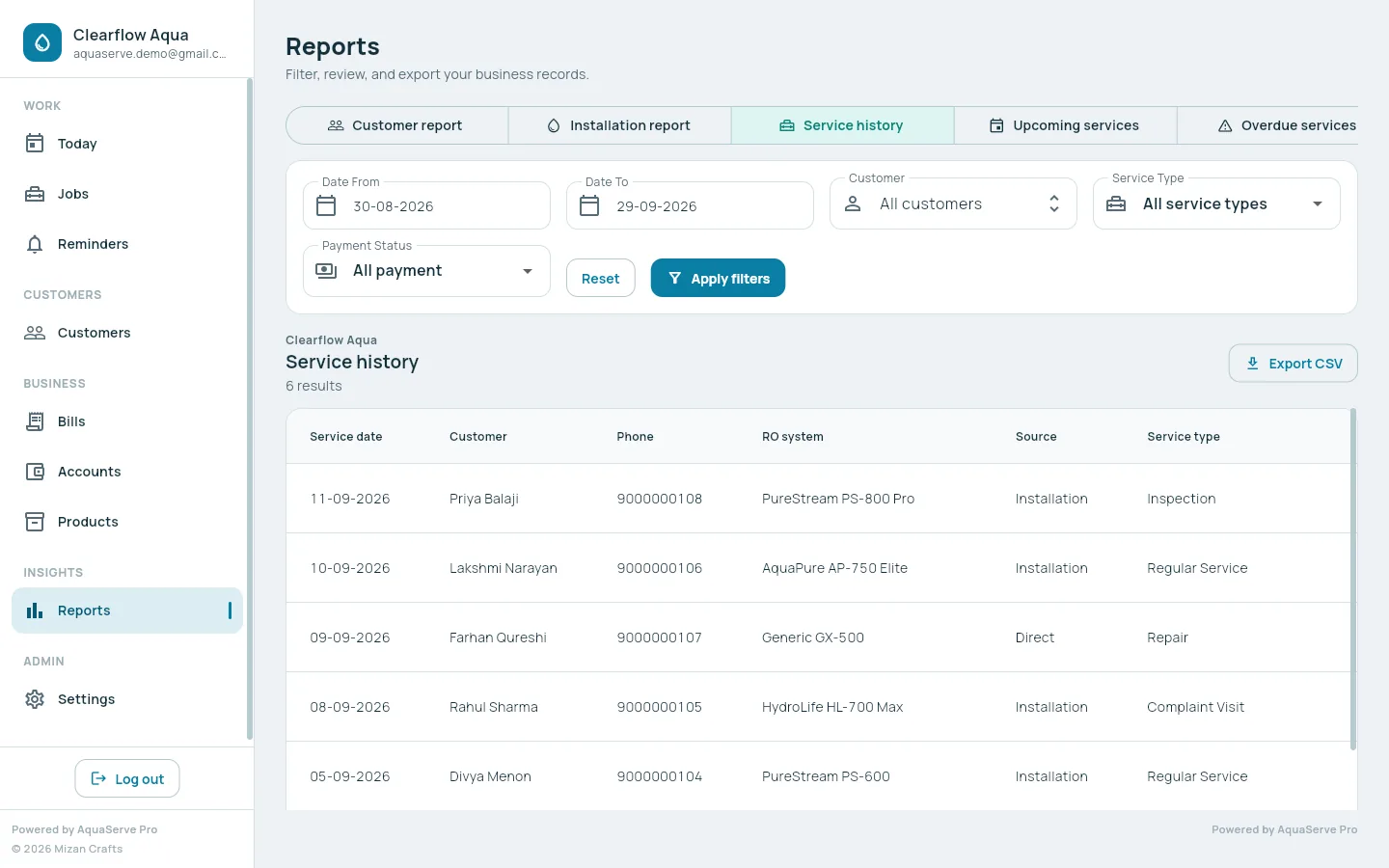
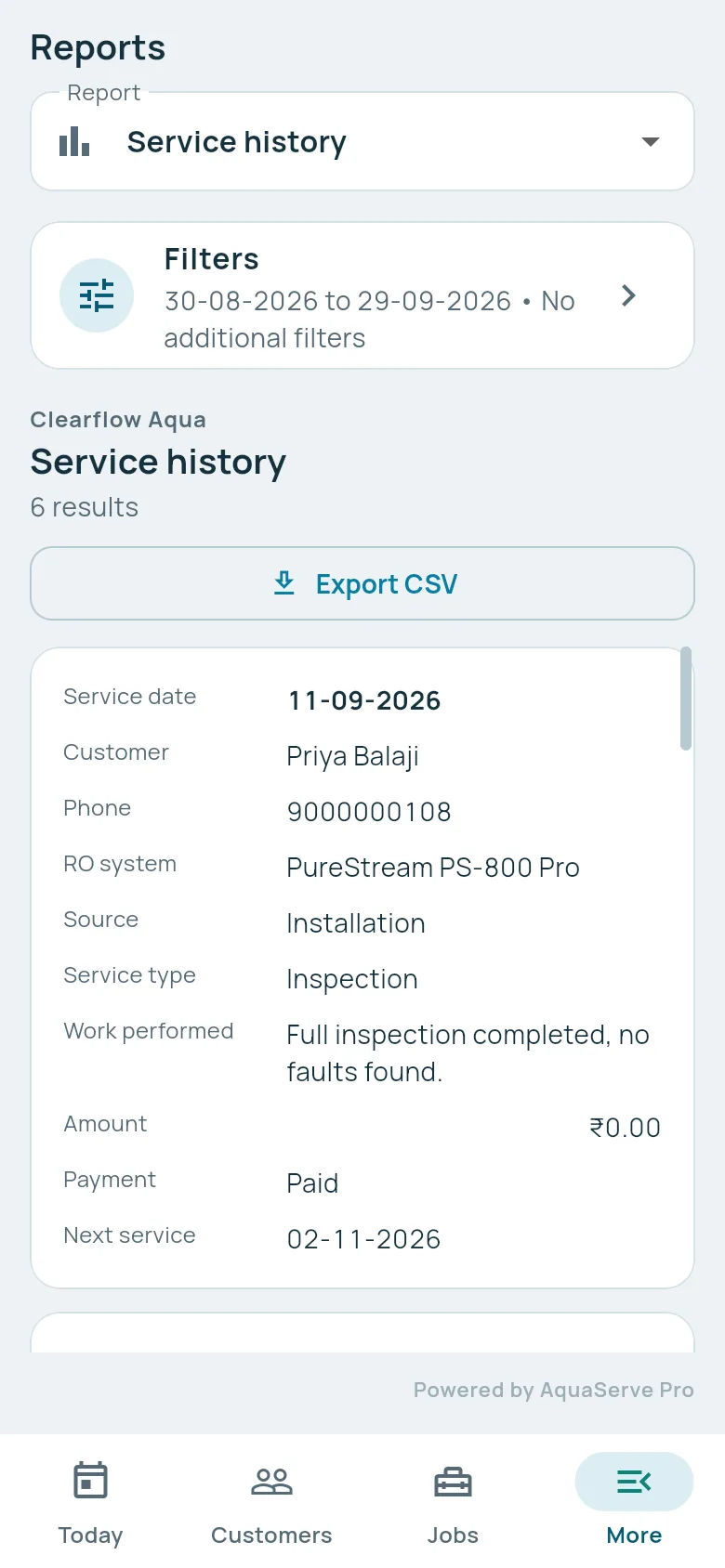
- Customer, installation, service history, upcoming and overdue services
- Collection, payment, expense and outstanding reports
- Filter by date range, customer, service type and payment
- Export any report to CSV for your accountant or a spreadsheet
How to use it
- 1Open Reports and pick a report.
- 2Set the dates and filters, then apply.
- 3Tap Export CSV to download it.
Your business name and logo, throughout the app.
What your staff and customers see is your business. A small “Powered by AquaServe Pro” line is the only mention of us.
In the app
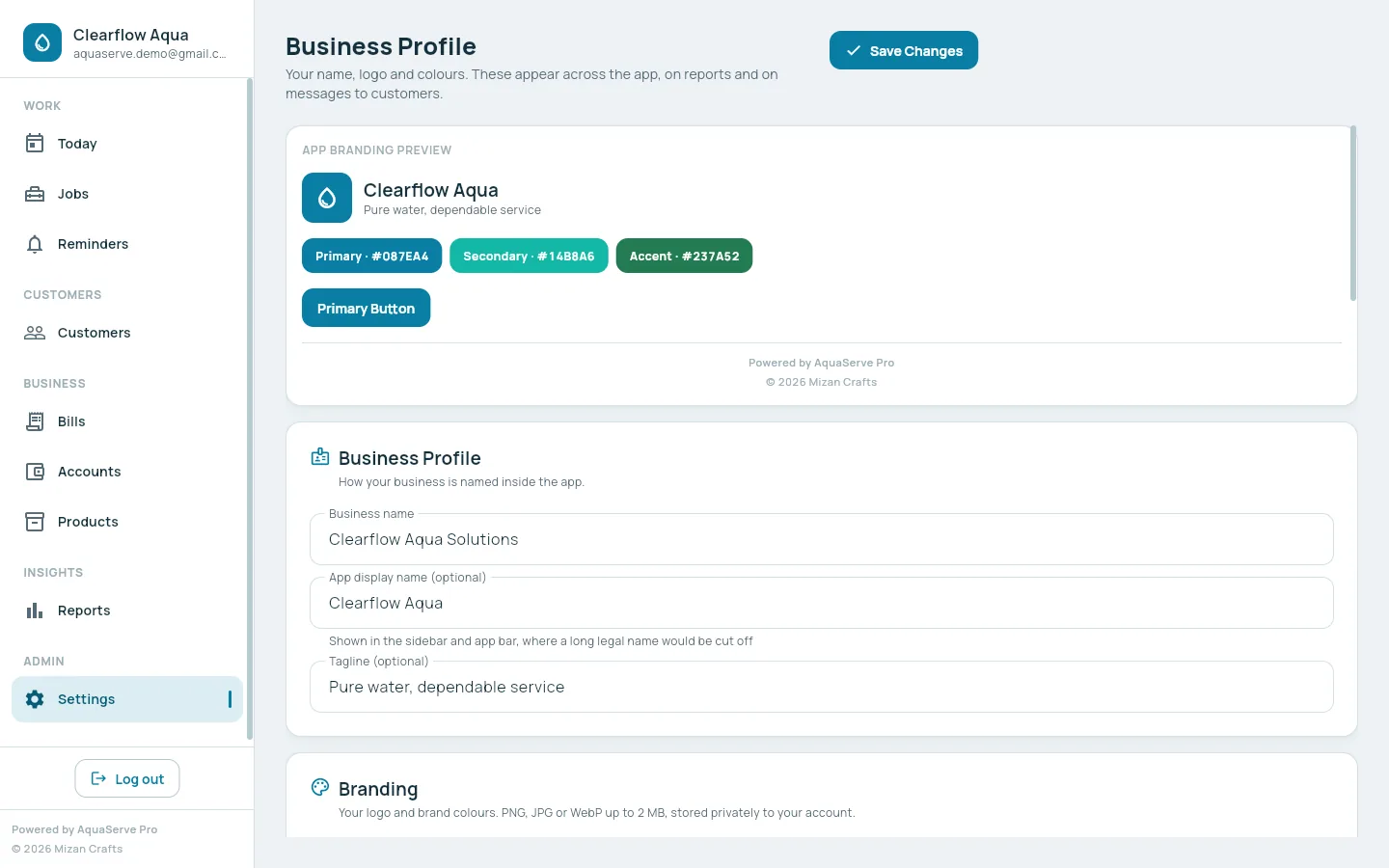
Your logo and display name sit at the top of the sidebar and app bar, in your brand colours.
On every bill
The PDF carries your logo, business name, address, phone, WhatsApp, GST number, bill prefix and footer note.
For every account
Each business has its own profile. Changing yours never changes anyone else's.
Set up your brand in five minutes
- 1Open Settings, then Business Profile.
- 2Enter your business name, the short name to show in the app, and a tagline.
- 3Upload your logo (PNG, JPG or WebP, up to 2 MB) and pick primary, secondary and accent colours.
- 4Add phone, WhatsApp, email, address and GST number, and your bill prefix.
- 5Save. The app and your next bill use the new branding straight away.
Built-in contrast checks keep your branding readable. A colour that would make text hard to read is replaced with a readable default.